How to add Gift Card inventory
Please follow the instructions below for the method you have chosen to upload your Gift Card inventory.
Adding Inventory from a Non-Shopify Plus Account
If you are have a shopify account but not the Shopify Plus plan then you are unable to connect Gift Cards through out system organically. In order to do so please follow these instructions in order to create a direct link between your Prizeout Merchant Portal and your Shopify account.
Create a Shopify Private App:
- Go to your Shopify account and in the left menu click Apps
- At the bottom click At the bottom click Manage Private Apps
- Click Enable Private App Development
- Check all 3 boxes
- Again click Enable Private App Development
- Click Create Private App
- Enter Private App name (for your reference only) and Emergency Developer email address
- Click Show inactive admin API permissions
- Change Inventory, Orders, & Products to Read and write
- Change Product Listings and Customers to Read access
- Do not check Allow App to access Storefront
- Click Save
- Click Create app
- *Please wait for it to load and only click Create App once
- If you do click more than once, you will end up with multiple Private App copies
- To fix, click Apps in the left menu again and at the bottom click Manage Private Apps
- If there is more than one copy, you can delete all extras
- Once you have only one copy of the recently made Private App, click into it
- Click Apps, Manage Private Apps, and then click into your Private App to view API connection information
Connect Private App to Merchant Portal
- Enter the Prizeout Merchant Portal
- Click Inventory in the Portal menu
- Click Connect with Shopify
- Enter your Shopify URL. Format: [your-shop-name]. myshopify.com
- Copy and paste the API Key, Shared Secret, and Password into the corresponding fields from
the information in your Shopify Private App - Click Connect
- Click Add Gift Cards
- *Pop-up may appear*
- Click Connect Inventory Now
- This will take you back to your Shopify account
- Click Add Gift Card Product
- Exit Shopify
- In the Merchant Portal, click Close in the pop-up
- Again, Click Add Gift Cards
- By default, we use our pre-generated list of denominations. If you wish to only provide select Gift Card values please deselect those you do not wish to offer through your Prizeout merchant portal.
- You have now successfully linked your Shopify account Gift Card Product to the Prizeout Merchant Portal
questions or encounter any issues.
Adding Inventory from a Shopify Plus Account
If you are have a shopify account but not the Shopify Plus plan then you are unable to connect Gift Cards through out system organically. In order to do so please follow these instructions in order to create a direct link between your Prizeout Merchant Portal and your Shopify account.
Create a Shopify Private App:
- Go to your Shopify account and in the left menu click Apps
- At the bottom click At the bottom click Manage Private Apps
- Click Enable Private App Development
- Check all 3 boxes
- Again click Enable Private App Development
- Click Create Private App
- Enter Private App name (for your reference only) and Emergency Developer email address
- Click Show inactive admin API permissions
- Change Inventory, Orders, & Products to Read and write
- Change Product Listings and Customers to Read access
- Do not check Allow App to access Storefront
- Click Save
- Click Create app
- *Please wait for it to load and only click Create App once
- If you do click more than once, you will end up with multiple Private App copies
- To fix, click Apps in the left menu again and at the bottom click Manage Private Apps
- If there is more than one copy, you can delete all extras
- Once you have only one copy of the recently made Private App, click into it
- Click Apps, Manage Private Apps, and then click into your Private App to view API connection information
Connect Private App to Merchant Portal
- Enter the Prizeout Merchant Portal
- Click Inventory in the Portal menu
- Click Connect with Shopify
- Enter your Shopify URL. Format: [your-shop-name]. myshopify.com
- Copy and paste the API Key, Shared Secret, and Password into the corresponding fields from
the information in your Shopify Private App - Click Connect
- Click Add Gift Cards
- *Pop-up may appear*
- Click Connect Inventory Now
- This will take you back to your Shopify account
- Click Add Gift Card Product
- Exit Shopify
- In the Merchant Portal, click Close in the pop-up
- Again, Click Add Gift Cards
- By default, we use our pre-generated list of denominations. If you wish to only provide select Gift Card values please deselect those you do not wish to offer through your Prizeout merchant portal.
- You have now successfully linked your Shopify account Gift Card Product to the Prizeout Merchant Portal
questions or encounter any issues.
Adding Inventory from a CSV file
If you do not have an account with Shopify you can upload Gift Card Codes and Pin directly to CSV. You can use whatever storefront or ecommerce software that you are connected with to assist you in the creation of your Gift Card Codes.
To create a CSV with Gift Card Codes you can:
- Use your ecommerce storefront software to assist in the creation of your Gift Card Codes/Pins
- Use any spreadsheet software to create your CSV
- Create the following columns
-
- Column Code: This is the Gift Card Code that the consumer will enter on your site.
- Column Pin: Only a required field should you ( the merchant) require a pin through your platform/website. Pins should be unique and attached to their corresponding Gift Card Code in the CSV file.
- Column Value: This is the dollar value of the gift card that will be redeemed on your platform/website.
- Column Currency Code: Local currency that you operate in (USA = USD)
- Column Expiration Date: Should your gift cards expire, this is where you enter that date
- Column Special Instructions: If you think your redemption process requires further explanation to your consumers, here is a column that provides the opportunity to create additional content for them.
-
Disclaimer: Gift card codes cannot expire in the United States by law
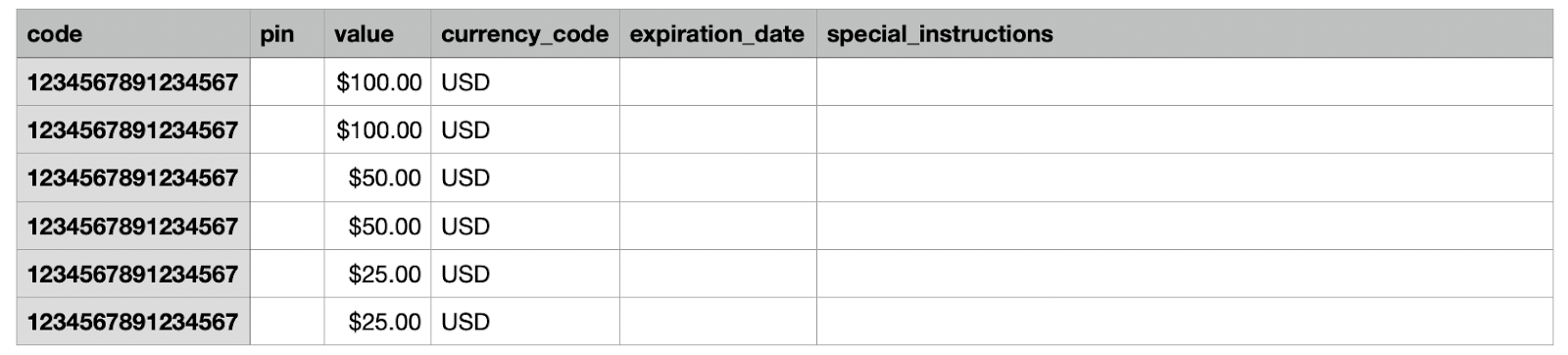
To add your CSV to your Merchant Portal:
- Enter your Prizeout Merchant Portal at, partners.prizeout.com
- Click Inventory in the left menu
- Click Upload CSV
- Click Upload Inventory
- Choose your CSV file
- Click Start Import
Once your CSV is imported you will be able to view the level of inventory of each of your Gift Card denominations.
Click here to view how to reload more Gift Card inventoryAdding Inventory from Prizeout
If your business doesn't currently have any Gift Cards, that’s no issue, Prizeout can provide you with Gift Card inventory through our Merchant Portal.
These Gift Cards will be provided through the Prizeout Gift Card system and can only be redeemed in store through the Prizeout POS system. An internet enabled device will also be necessary for in store Prizeout provided Gift Cards.
How to Connect through Prizeout:
- Sign in to your Prizeout Merchant account at, https://partners.prizeout.com/
- Navigate to the Inventory tab
- Click Connect with Prizeout
- Click Connect
- Click the three dots in the upper right hand corner of the Store Information section
- Click Add Store
- Enter the Store name, Address (Click the white magnifying glass to autocomplete), and a 4-digit unique PIN number. The PIN number must be unique to every store location you enter.
- Click Add New Storefront