Adding Gift Card Inventory from a CSV
If you do not have an account with Shopify you can upload Gift Card Codes and Pin directly to CSV. You can use whatever storefront or eCommerce software that you are connected with to assist you in the creation of your Gift Card Codes.
To create a CSV with Gift Card Codes you can:
- Use your eCommerce storefront software to assist in the creation of your Gift Card Codes/Pins
- Use any spreadsheet software to create your CSV
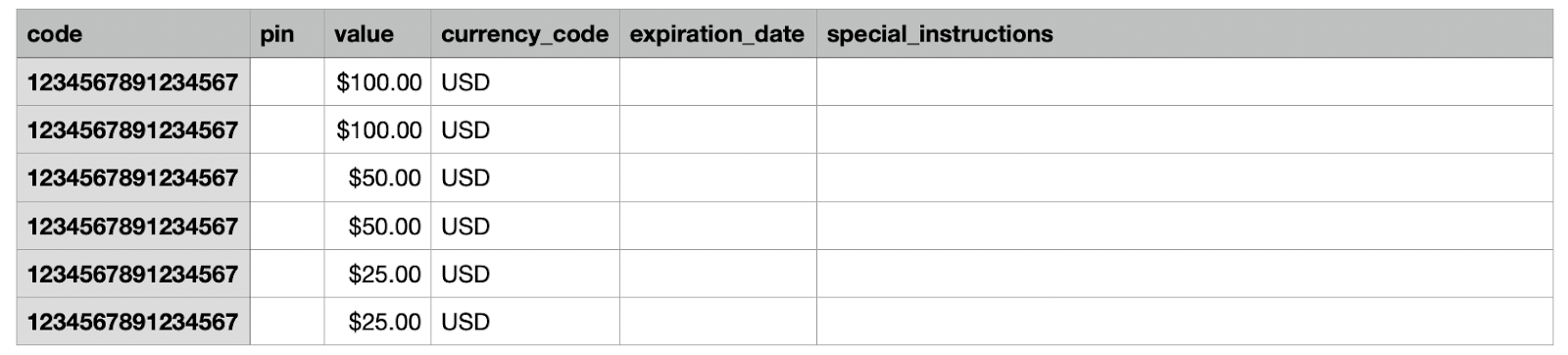
- Create the following columns
-
- Column "Code": This is the Gift Card Code that the consumer will enter on your site.
- Column "Pin": Only a required field should you ( the merchant) require a pin through your platform/website. Pins should be unique and attached to their corresponding Gift Card Code in the CSV file.
- Column "Value": This is the dollar value of the gift card that will be redeemed on your platform/website.
- Column "Currency_Code": Local currency that you operate in (i.g. USA = USD)
- Column "Expiration_Date": Should your gift cards expire, this is where you enter that date
- Column "Special_Instructions": If you think your redemption process requires further explanation to your consumers, here is a column that provides the opportunity to create additional content for them.
-
Disclaimer: Gift card codes cannot expire in the United States by law
As seen in the picture: If any column does not apply to your gift cards (see pin, expiration, and instructions below) leave the column blank with the header still in the correct order
To add your CSV to your Merchant Portal:
- Enter your Prizeout Merchant Portal at, partners.prizeout.com
- Click Inventory in the left menu
- Click Upload CSV
- Click Upload Inventory
- Choose your CSV file
- Click Start Import
Once your CSV is imported you will be able to view the level of inventory of each of your Gift Card denominations.
Click here to view how to reload more Gift Card inventory